-May-27-2025-10-14-42-1506-AM.png?width=150&height=38&name=IEGGroup-Logo_Black-filled%20(2)-May-27-2025-10-14-42-1506-AM.png)
These two additional search features within CEC enable users to;
Search, view and update processes outside of a customer account
Search, view and update forms/requests outside of a customer account. (There is currently the ability to search for a form already within CEC, but you need to have any customer account in context to access the forms search).
Two new icons have been added to the side menu bar within CEC which allow users to search across processes and forms directly from within CEC. A summary of each new feature is provided below. (Full step-by-step guidance is available in the latest DXP Customer Engagement Centre User Guide).
Search Processes Icon
A new Search Processes icon has been added to CEC. Clicking the icon opens the Search Processes screen where users can search for any process which is currently in progress, has been completed, or has been abandoned within the workflow module.

The new Search Processes icon.
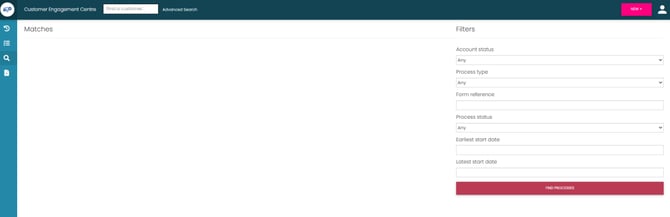
Search Processes screen with filters
Search filters available: the Search Processes screen offers the following filters to help locate a process quickly:
Account Status — choose Specific Account to search using customer portal accounts, or No Accounts to find processes which are not linked to a customer account.
Process Type — filter on a specific process type.
Form Reference — search using the unique reference number generated when a digital form is submitted.
Process Status — Any, Not Started, In Progress, Complete or Abandoned.
Dates — restrict results to processes that began between an Earliest start date and a Latest start date.
Once the filters have been set, click the red Find Processes button to return all matching processes on the left-hand side of the screen. Each result shows the name of the process, its status, who completed it and the start date. If there are more results than can be displayed, click Load More to retrieve additional records.
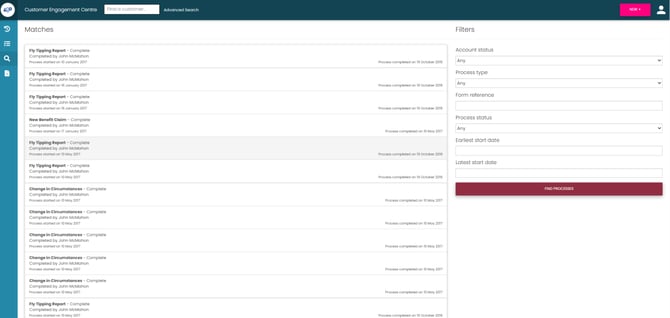
Matching processes displayed after running a search.
Process details: click any process in the results list to open the Process Details screen. The details screen includes several tabs:
Steps — shows each step, its status, the allocated user, the start date and (where applicable) the completed date and target date.
Notes — shows any notes recorded against the process by either the customer or a council officer.
Documents — lists any documents recorded against the process.
Accounts — shows the customer account the process is linked to. If the process is not linked, click Add Account to link it and then Save Account Changes.
Click the green Refresh button at any time to pull through the latest updates — useful if the customer is updating notes or uploading documents in their portal account in real time.
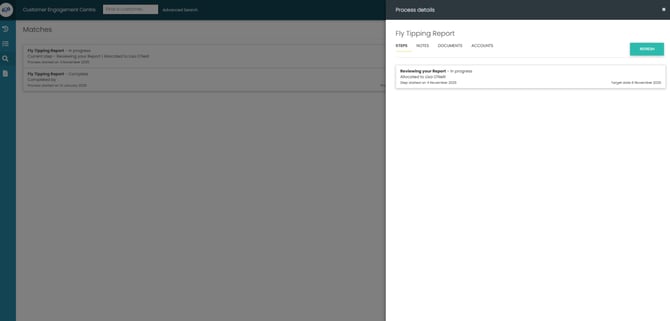
Process details screen showing the available tabs.
Search Forms Icon
A new Search Forms icon has also been added to CEC from the menu bar to the left.
This allows you to use the Forms Search without first having to have a customer account open. Alternatively you can search for a customer account and then use the Find In Progress and Completed forms tab which offers the same search facility.
Clicking this icon opens the Search Forms screen where users can search for any form which is in progress or which has been completed.

The new Search Forms icon.
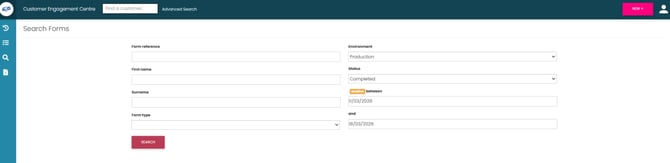
Search Forms screen with filters.
Search filters available: forms can be searched using the following options:
Form reference
First name
Surname
Form type
Environment (Development / Test / Production)
Status (Completed / In progress)
Date range
Once the filters have been set, click the red Search button to return any matching forms. Each result displays the form name, the unique form reference number generated on submission, the date and time the form was submitted and the date and time it was last updated. Click Show More to load further records, or Back To Search to return to the filter screen.
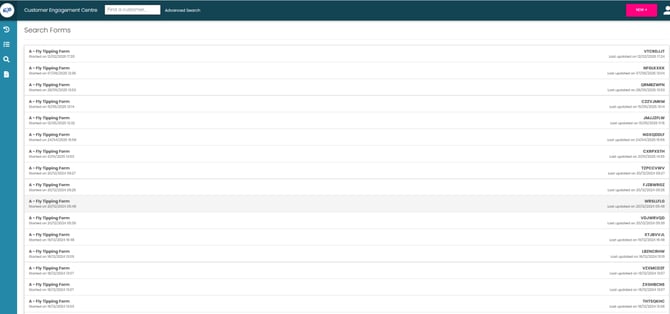
Matching forms displayed after running a search.
In progress forms: click an In progress form to view when the form was started or last accessed, the citizen’s name and address, any save-for-later emails, any documents that have been uploaded, the time spent on the form (including per page), the browser type and the IP address. From this screen you can also open the form to complete it on behalf of the citizen, send the citizen an email or lock the form so it cannot be completed.

In Progress Forms screen.
Completed forms: click a completed form to view when the form was started or last accessed, the citizen’s name and address, any save-for-later emails, a PDF version of the completed form, any back-office files (XML / JSON / CSV), the outcome of any integrations, any uploaded documents and time/browser/IP details. From this screen you can re-process an integration or send an email to the citizen.
Completed Forms screen
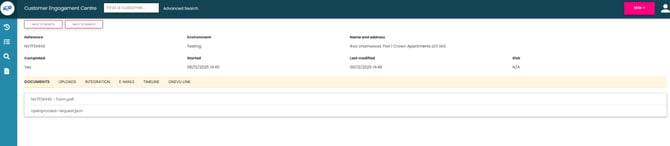
Tabs available on the form record: when a form is opened, the following tabs are available:
Documents — shows any documents linked to the form. Click a document to open it in a new browser tab; an automatically generated PDF of the submitted form is also available here.
Upload — shows any uploads against the form, such as supporting pictures or documents.
Integrations — shows integration information linked to the form. Click the integration entry to see the back-office response. Where appropriate, click the red Reprocess button to re-run the integration.
Emails — allows an email to be sent to the citizen using the email address provided in the form.
OneVu Link – allows a Form to be linked to a customer account (if it is not already linked)
Bug Fixes
Service Requests - Steps after branch rules not displayed
Forms - Forms opening in New Window configuration lose the customer account in context
My Tasks - Complete steps with mandatory Fields do not update