-May-27-2025-10-14-42-1506-AM.png?width=150&height=38&name=IEGGroup-Logo_Black-filled%20(2)-May-27-2025-10-14-42-1506-AM.png)
Create Custom Template:
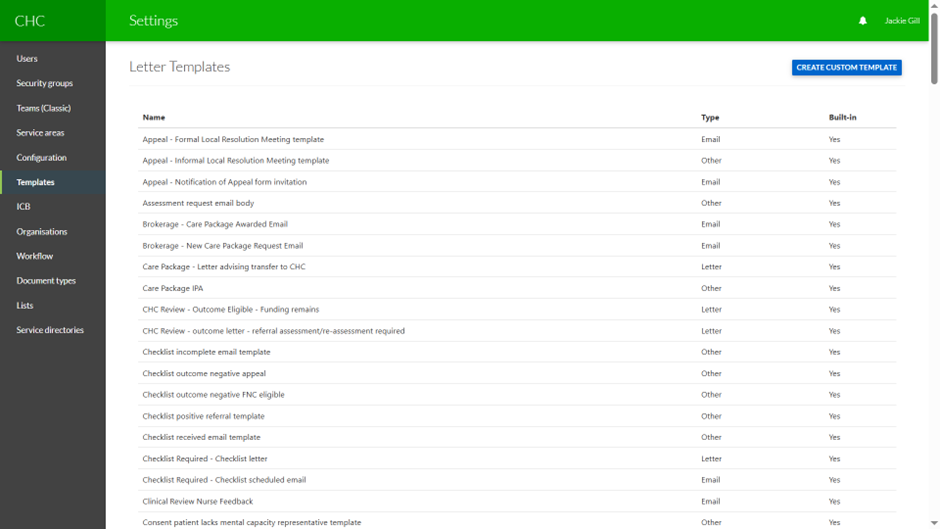
Click on Create Custom Template:
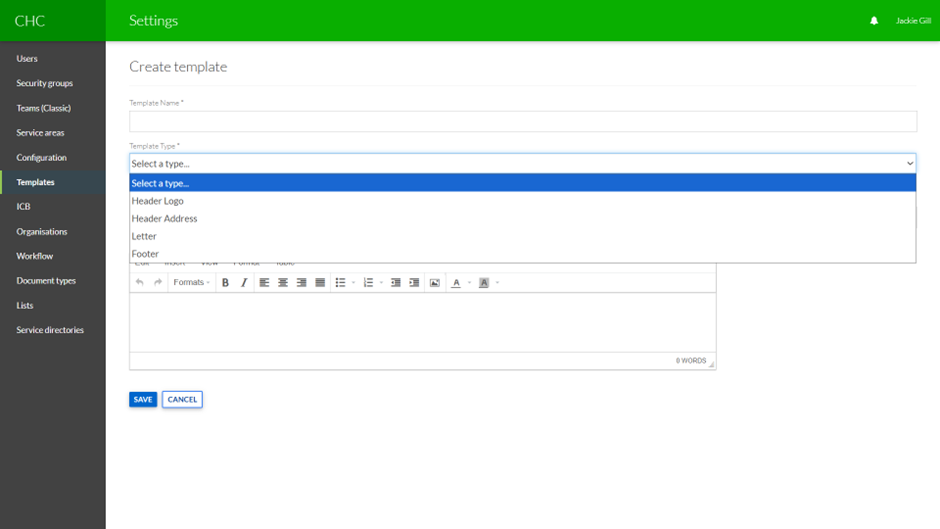
There are four types:
- Header logo
- Header address
- Letter
- Footer
Header Logo:
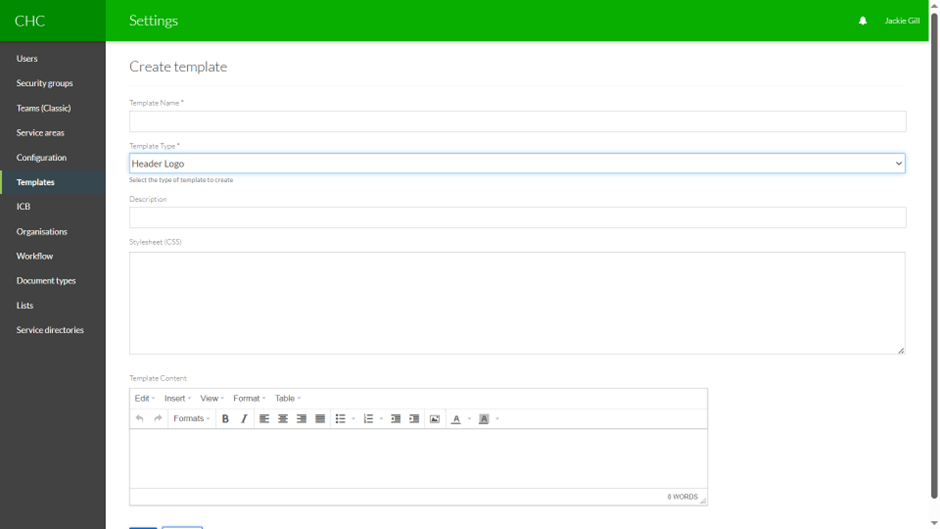
- Type in the Template Name
- Select the Template type (Header Logo)
- Description is optional
- Add the Cascading Stylesheet (CSS)
- Type in the Header Logo Template content
Click Save.
This Header Logo is now available to add to Letter Templates.
Header Address:
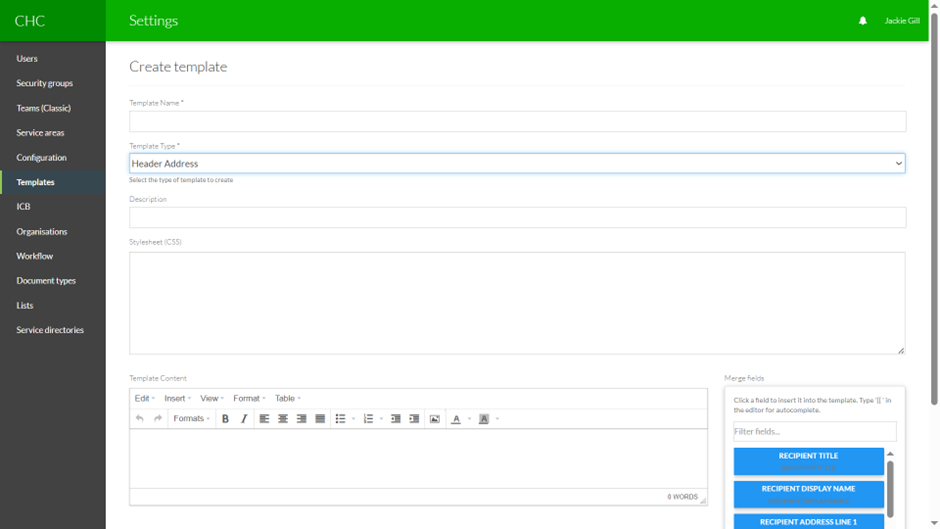
- Type in the Template Name
- Select the Template type (Header Address)
- Description is optional
- Add the Cascading Stylesheet (CSS)
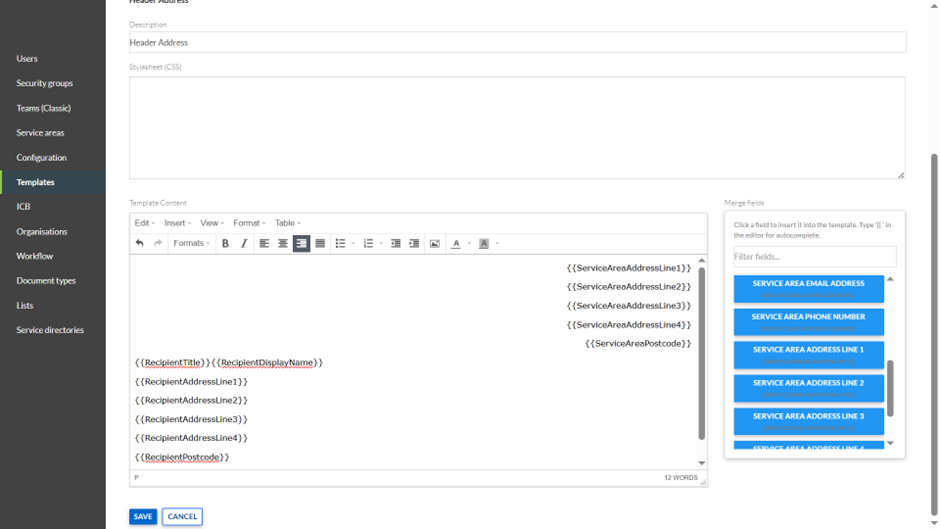
- Type in the Header Address Template Content
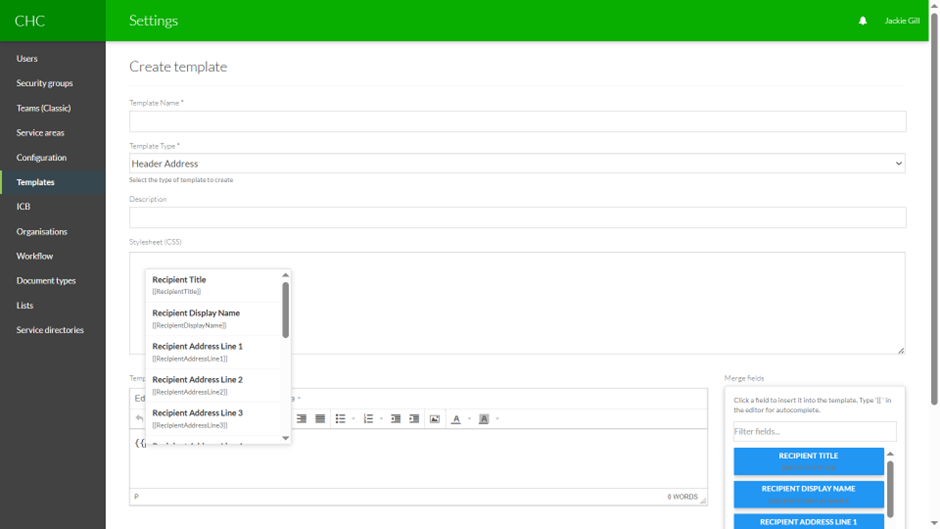
For the Header Address Template Content there are placeholders that can be selected to automatically pull in data from the system (mail-merge function).
You can either click to select a placeholder or in the Template Content field type in {{ and you will then see a dropdown list of placeholders to select from:
Click Save.
This Header Address is now available to add to Letter Templates.
Letter
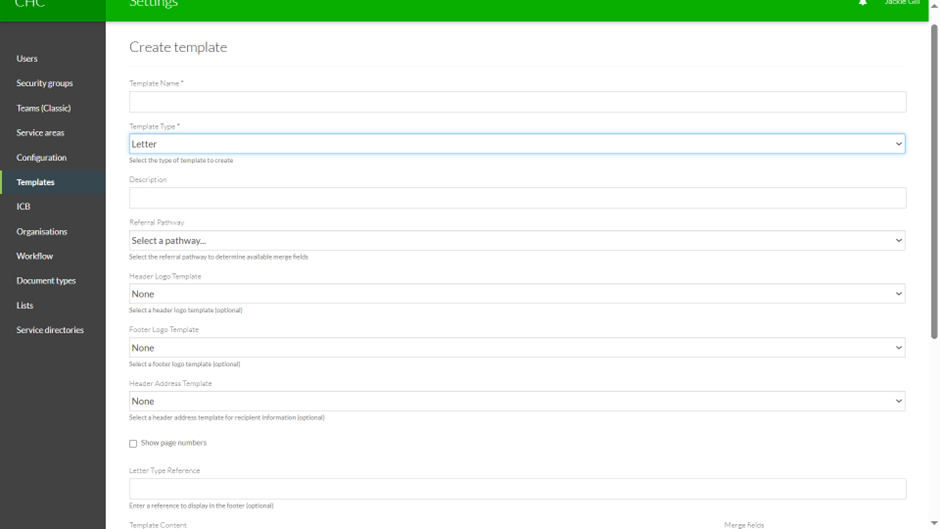
- Type in the Template Name
- Select the Template type (Letter)
- Description is optional
- Select the Referral Pathway (this is so ICBs can control which Letter Templates are used according to the Referral Pathway on the case)
- Select the Header Logo Template
- Select the Footer Logo Template
- Select the Header Address Template
- Select the checkbox if you want page numbers to be included in the footer
- Letter Type Reference is optional (that can be used in the footer)
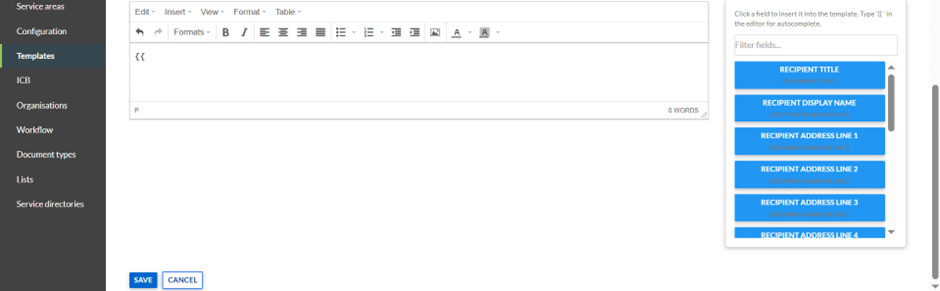
- Type in the Template Content
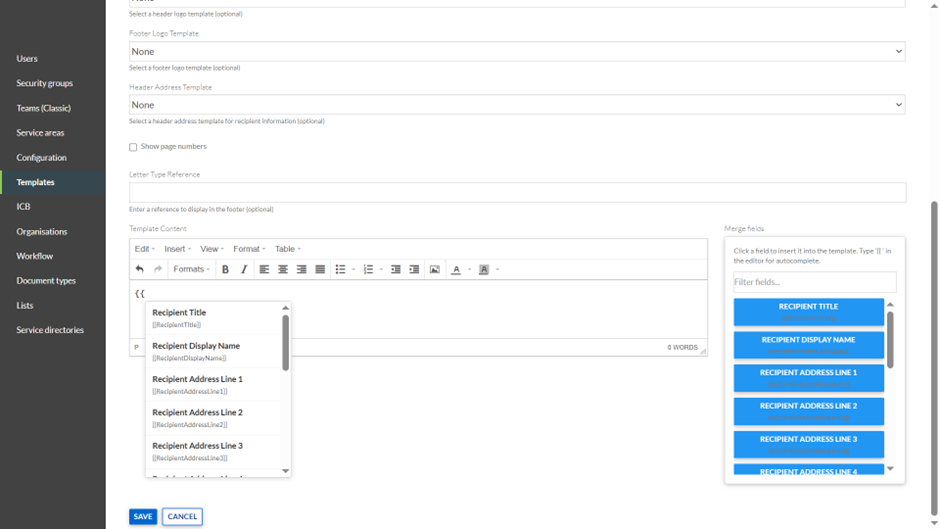
For the Template Content there are placeholders that can be selected to automatically pull in data from the system (mail-merge function).
You can either click to select a placeholder or in the Template Content field type in {{ and you will then see a dropdown list of placeholders to select from:
Footer
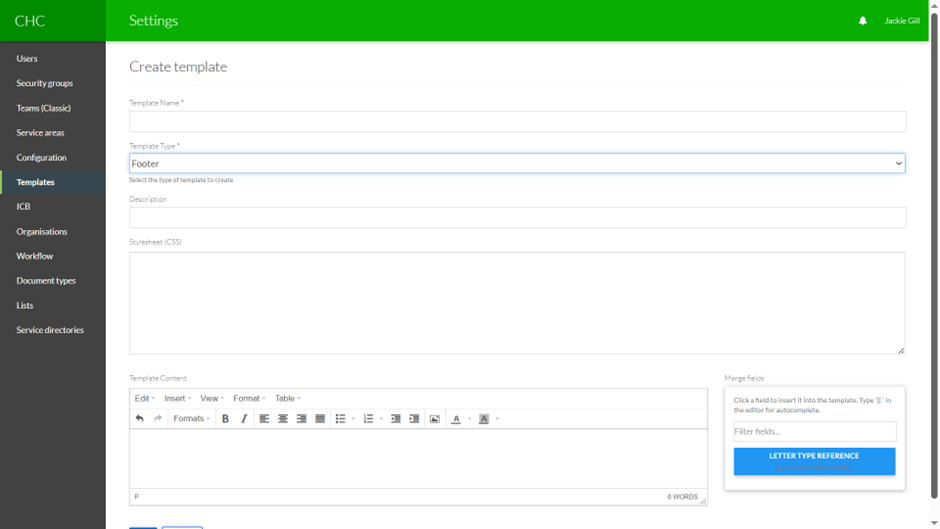
- Type in the Template Name
- Select the Template type (Footer)
- Description is optional
- Add the Cascading Stylesheet (CSS)
- Type in the Footer Template content
For the Template Content there are placeholders that can be selected to automatically pull in data from the system (mail-merge function).
You can either click to select a placeholder or in the Template Content field type in {{ and you will then see a dropdown list of placeholders to select from:

Click Save.
This Header Logo is now available to add to Letter Templates.
Service Areas – Letter Settings
The Letter Settings for each Service Area allows ICBs to record the Header Address that is used in Letter Templates.
This means that depending on which Service Area a case is linked to the relevant Header address will be used for any Letters generated.
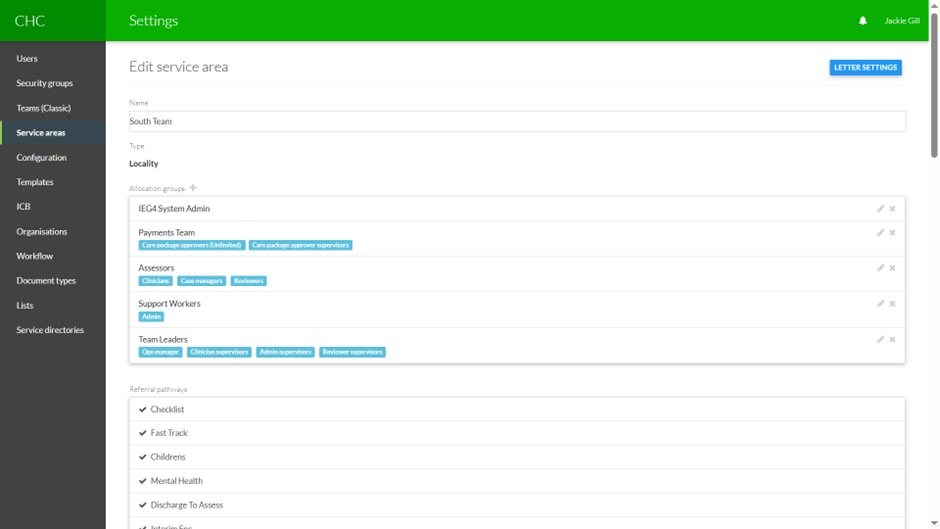
Click on Letter Settings:
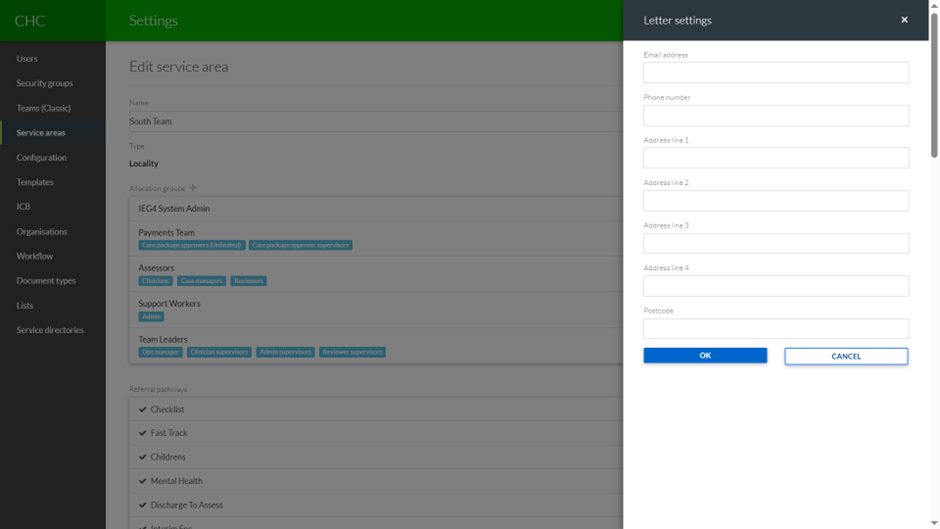
Type in:
- Email address
- Phone number
- Address Line 1
- Address Line 2
- Address Line 3
- Address Line 4
- Postcode
Click OK to save those details.
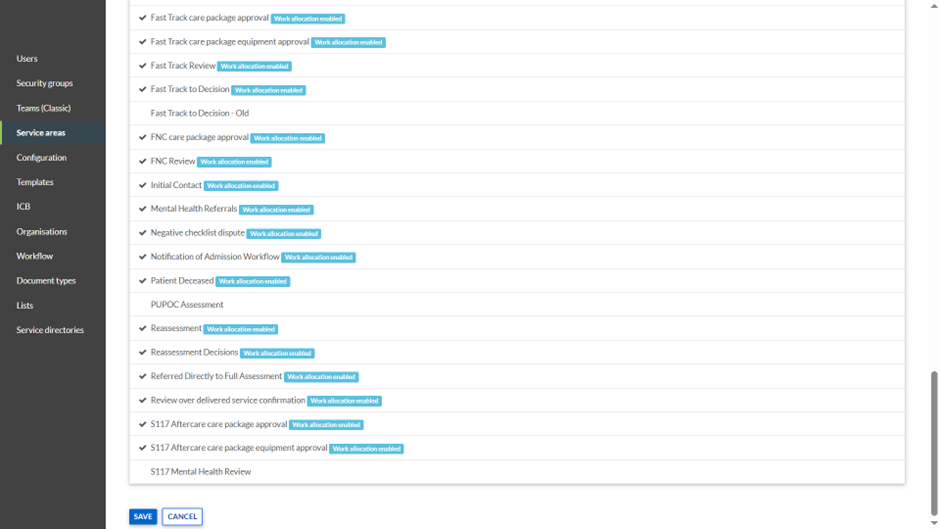
Then Click Save at the bottom of the page to save the changed details for the Service Area:
Those Service Area specific fields will then appear as Placeholders when creating the Header Address Template:
Creating a Letter from the Documents Tab
Case details – Documents tab:
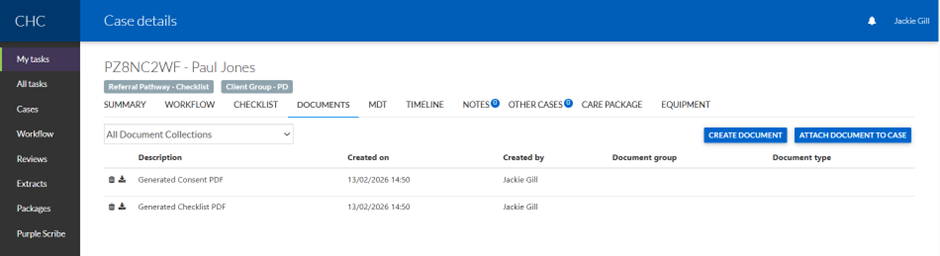
Click on Create Document.
The system will list all Custom Letter Templates that have been added to the Referral Pathway linked to the case:
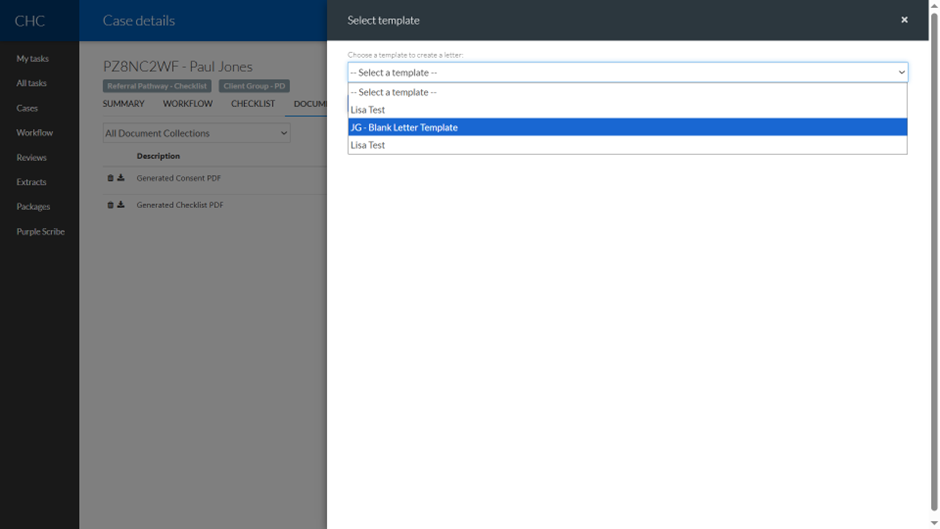
Select the Letter Template:
The user can select the Recipient:
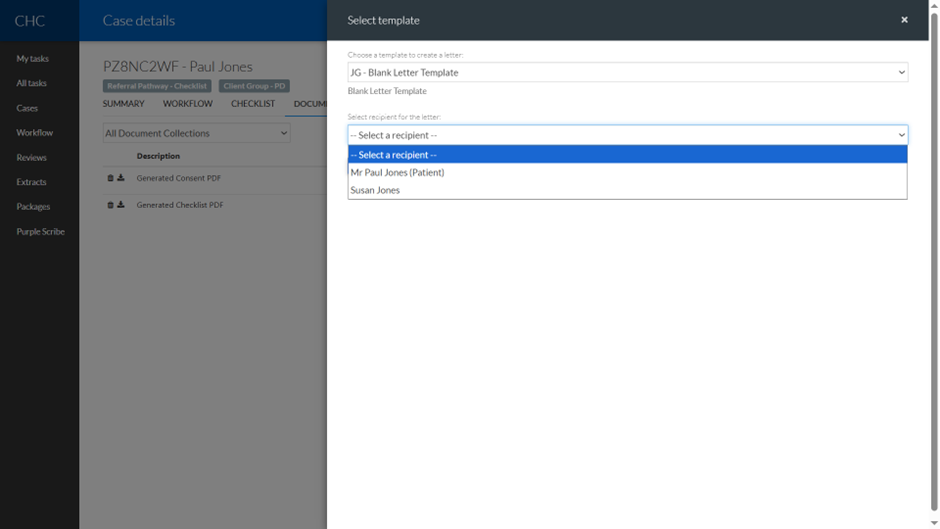
The list of Recipients includes the patient and any other “Contacts” that are linked to the case from the Contacts section on the Summary page.
Once the Recipient has been selected the details will be displayed:
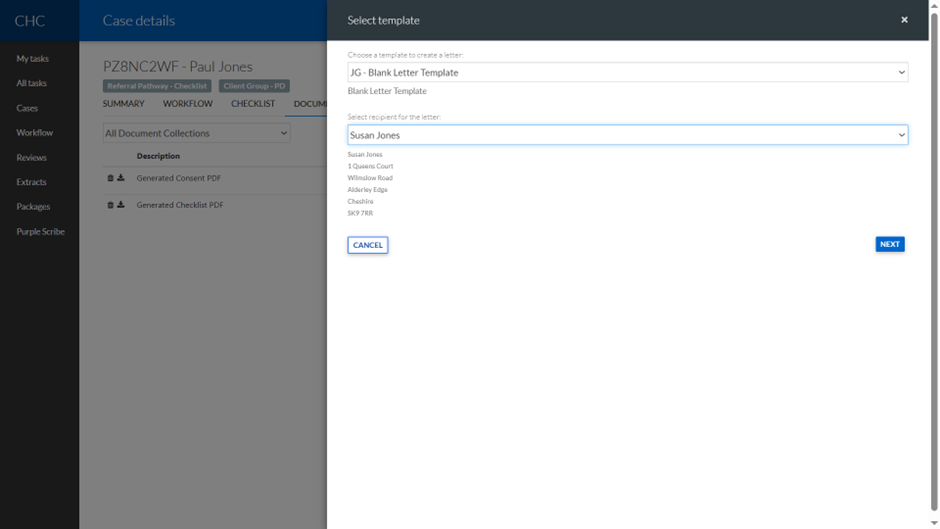
Click Next:
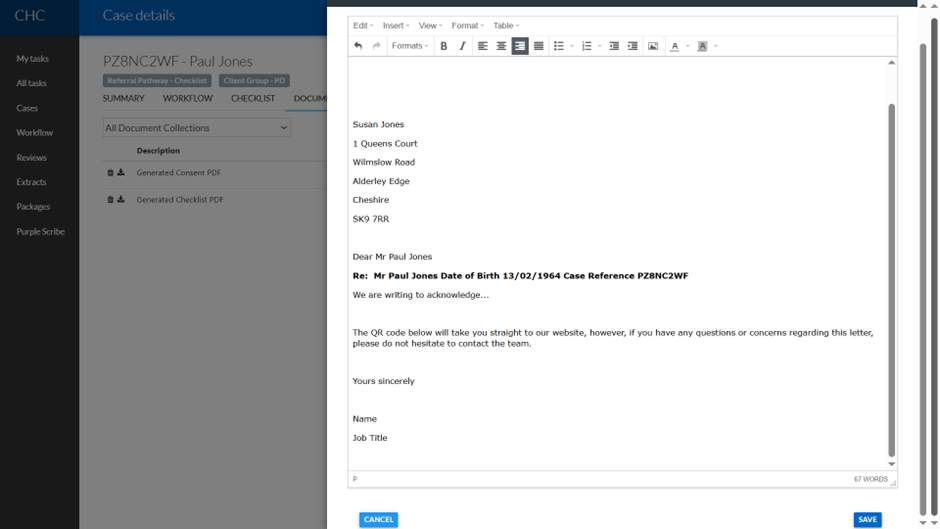
The system will do a mail-merge using the Letter Template Placeholders.
The contents of the letter can be amended if required.
Click Save.
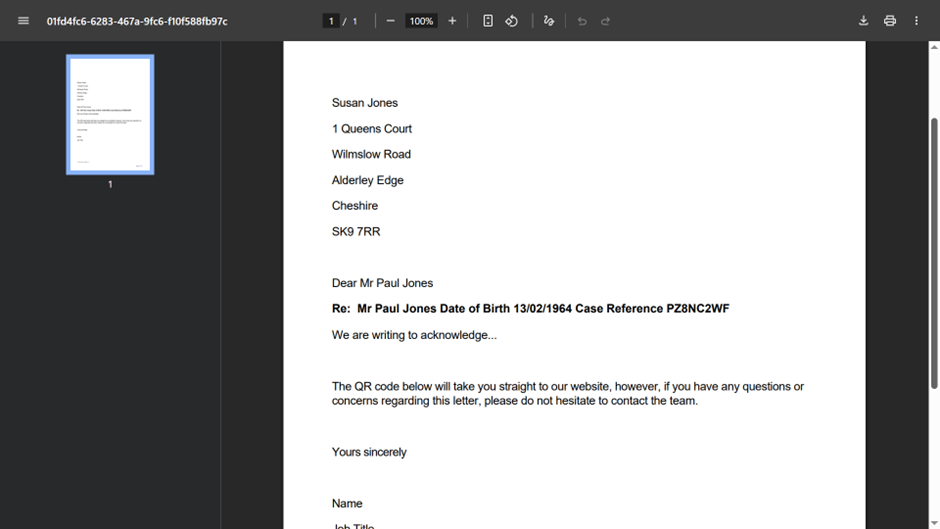
A PDF of the letter is then generated:
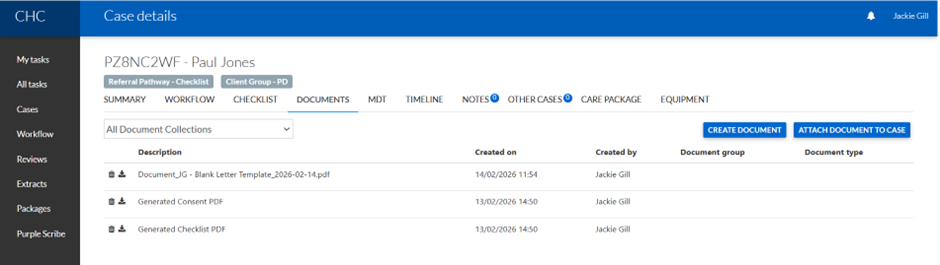
The PDF can be downloaded by clicking on the download icon:
Zoho Tasks included in this Release:
Task 1491 - Letters - Letter Generation - enhancements required – this overall Task was broken down into individual components so this Task has been set to completed
Task 2056 - Letters - Create a custom letter template in settings and create a letter from the template on the case documents screen
Task 2065 – Letters - Add header logo and footer template, and choose header/footer to use per letter
Task 2067 – Letters - add a custom reference to the footer of each letter
Task 2069 - Letters - add a new type of template for header address, and pick the recipient from patient or key contact
Task 2075 - Letters - include address and contact info for service area and make available to letter templates via header address section